One-Day On-site Headshots: Templates & Proofs for Corporate Organizers
%20(1)%201.png)
.png)
.png)
August 17, 2026
%20(1).jpg)

The best photo file naming format follows a pattern that starts with the date, followed by project or client information, and a sequence number, such as YYYY-MM-DD-project-or-client-###.ext. That single structure solves the two biggest problems people run into: files that vanish into a search void, and folders that turn into alphabetical chaos the moment you hit file number 10.
Three rules make this format work, and skipping any one of them breaks the system down the road.
001, not 1. Without padding, a sort puts 10.jpg right after 1.jpg and before 2.jpg, which turns a 500-image shoot into a scavenger hunt.Once you settle on a pattern, write it down. A one-page README stored at the root of your photo archive, or pinned in your shared drive, saves you from reinventing the convention every time a new project starts or a new person joins the workflow.
A consistent naming system pays for itself the first time you need to find one photo among ten thousand. Think about the alternative: you’re searching for the CFO’s headshot from last spring’s investor deck shoot, and every file in the folder is named IMG_4821.jpg or DSC00392.jpg. You’d have to open dozens of images just to confirm you’ve got the right one.
Now picture the same folder using dated, descriptive names. A file called 2026-04-02-acme-investor-day-cfo-headshot-003.jpg tells you everything before you double-click: the date, the event, the subject, and where it falls in the sequence. That’s the entire value proposition of good photo file management, and it costs nothing but a little upfront discipline.
The practical benefits stack up fast:
There’s also a compatibility angle that trips people up. Special characters that look harmless on a Mac, like colons or ampersands, can break file transfers or display oddly once a file crosses onto Windows or a cloud server. Sticking to a plain, ASCII-only naming scheme keeps your archive readable no matter what system opens it five years from now.
Every naming convention, whether you’re organizing vacation photos or delivering a corporate headshot library, rests on the same handful of rules. Break one and the whole system gets brittle.
YYYY-MM-DD or YYYYMMDD). This keeps files sorting chronologically without any manual reordering.Photo.jpg and photo.jpg as two different files.&, #, %, @, or punctuation beyond hyphens and periods).001 through 999) so sort order never breaks past file nine.Each rule solves a specific failure point. Date-first naming keeps chronological order intact. Lowercase and hyphens prevent case-sensitivity bugs between operating systems. Short names avoid path-length errors that pop up when a deeply nested folder combines with a long filename, especially on older Windows systems. And padded numbers keep a 200-image shoot in the exact order it was captured.
Here’s how good and bad naming compares side by side:
| Good Example | Bad Example | Why It Fails |
|---|---|---|
2026-05-11-acme-launch-005.jpg |
Acme Launch Photo (5).jpg |
Spaces, parentheses, and mixed case break sorting and portability |
2026-05-11-teamphoto-012.jpg |
img_00458.jpg |
No date or context, uppercase extension inconsistent with rest of archive |
2026-05-11-headshots-john-003.jpg |
john_headshot_final_v2_USE THIS ONE.jpg |
Underscores, spaces, and vague version language |
2026-05-11-product-blue-shoe-001.jpg |
product1.jpg |
No date, no color or variant detail, unclear sequence |
Filenames only carry half the weight. The other half comes from a folder structure that mirrors the same logic, so you’re never relying on the filename alone to tell the whole story.
The most reliable structure follows a Year > Month > Project (or Event) hierarchy. It pairs naturally with date-first filenames because both layers reinforce the same chronological logic. If you ever need to find everything from a given month, you don’t even need to open a file. You just navigate the folder path.
A few real examples show how this adapts across different use cases:
2026/05-may/family-reunion/2026-05-20-family-reunion-042.jpg2026/04-april/acme-investor-day/2026-04-02-acme-investor-day-panel-018.jpg2026/03-march/acme-corp-headshots/final/2026-03-14-acme-corp-headshots-014.jpgNotice the final subfolder in that last example. For any shoot with multiple stages, keep your folder depth shallow but purposeful: a raw folder for untouched captures, a selects folder for the images chosen during culling, and a final folder for delivery-ready exports. Three levels deep is usually enough. Go beyond four or five and you’ll spend more time navigating than working.
Pro Tip: Never let version history live only in a folder name like “v2” or “final-final.” Put version information in the filename itself (-v2 or -edit2) so it survives if the file gets copied out of its folder.
Different projects call for different levels of detail in the filename itself. Here are four templates that cover almost every situation you’ll run into.
Minimal personal template: YYYY-MM-DD-event-###.jpg
Use this for casual photo libraries where the folder path already carries most of the context.
2026-06-15-beach-trip-001.jpg2026-06-15-beach-trip-002.jpg2026-07-04-fireworks-011.jpgPhotographer or studio template: YYYY-MM-DD-clientname-shoottype-###.jpg
This format works well because it stays meaningful even if the file gets pulled out of its folder and emailed directly to a client, an approach Filecamp’s naming guide for photographers recommends applying at import.
2026-03-14-acme-headshots-003.jpg2026-03-14-acme-headshots-corp-014.jpg2026-09-02-johnsonwedding-ceremony-087.jpgCorporate or client-delivery template: YYYY-MM-DD-client-projecttype-subject-###.jpg
Adding a subject tag matters most here, since corporate deliverables often get sorted or searched by person or department rather than by shoot date alone. This is the level of detail teams handling PR headshot requirements or corporate headshot attire standards typically need.
2026-03-14-acme-corp-headshot-ceo-001.jpg2026-03-14-acme-corp-headshot-cfo-002.jpg2026-03-14-acme-corp-teamphoto-marketing-018.jpgEcommerce or product template: sku-productname-color-angle-###.jpg
Product photography for online stores often skips the date entirely, since SKU and variant matter more for search than capture date, a distinction covered well in Hangr’s ecommerce photography guide).
sku4821-runningshoe-blue-front-001.jpgsku4821-runningshoe-blue-side-002.jpgsku4902-backpack-black-detail-003.jpgThe decision of what goes in the filename versus what stays in the folder path or metadata comes down to portability. If a piece of information matters even after the file gets moved or shared, put it in the name. If it’s already obvious from the folder structure, you can leave it out and keep the filename shorter.
Renaming five files by hand is fine. Renaming five thousand is a different job entirely, and that’s where batch tools come in.
For most photographers, Adobe Lightroom and Capture One handle renaming automatically during import, applying your naming template to every file as it’s ingested, an approach Digital Camera World’s photo file naming guide recommends specifically because it removes the manual step entirely. On Windows, Bulk Rename Utility offers a free, GUI-based way to apply date prefixes, sequence padding, and find-and-replace rules across thousands of files at once. On macOS, Finder’s built-in batch rename (right-click > Rename X Items) covers basic cases, while Name Mangler handles more advanced pattern matching.
If you’re comfortable with the command line, a few tools speed things up considerably:
exiftool "-FileName<CreateDate" -d "%Y-%m-%d-%%f.%%e" *.jpgrename 's/IMG_/2026-05-11-acme-/' *.jpgPro Tip: Always run a dry run first, or test the rename on a duplicate folder. Most batch tools show a preview of old-name-to-new-name before committing, and skipping that step is how people accidentally rename their only copy of a wedding shoot into an unrecoverable mess.
Keep your original RAW files untouched during this process. Rename copies or JPEG exports, and if you’re working with a large or irreplaceable archive, generate a CSV manifest mapping old filenames to new ones before you run the batch job. That manifest is your rollback plan if something goes wrong.
Filenames and metadata do different jobs, and confusing the two is one of the most common mistakes in photo file management. A filename needs to carry the information that makes a file identifiable on its own: date, client or event name, and sequence number. Metadata, embedded inside the file itself through EXIF, IPTC, or XMP fields, handles everything else: keywords, captions, photographer credit, subject names, and location data.

Harvard’s data management guidance makes the point directly: filenames should carry enough information that a file remains understandable even if it’s separated from its folder path. That’s the filename’s job. Metadata picks up the slack for everything too detailed to cram into a short filename, like a full list of keywords or a caption describing what’s happening in the shot.
Writing metadata at scale is straightforward with the right tool. Adobe Bridge lets you batch-apply IPTC fields like keywords, copyright, and creator across an entire folder in a few clicks. exiftool can do the same from the command line, useful when you’re processing thousands of images from a scripted workflow. Lightroom’s metadata presets work well for photographers who want consistent copyright and contact information baked into every export.
Here’s the catch: metadata doesn’t always survive the trip. Some messaging apps, social platforms, and even certain cloud upload tools strip EXIF and IPTC data on upload, either for privacy reasons or file-size optimization. That’s exactly why a well-built filename remains essential even in a metadata-rich workflow. It’s the one piece of context guaranteed to travel with the file no matter where it ends up.
Here’s the sequence a well-run photo workflow follows from the moment a memory card comes out of the camera to the moment a client gets their final files.
selects subfolder, keeping the rejected files in the original raw folder rather than deleting them outright.-edit1, -edit2).final subfolder, applying metadata like copyright and creator information during export where your software allows it.Pro Tip: Write your metadata (keywords, captions, copyright) during the export step, not after. It’s far easier to batch-apply metadata to a small folder of final selects than to retroactively tag thousands of raw files.
A short README included with any shared drive or archive folder saves enormous confusion down the line. Something as simple as this works:
Naming convention: YYYY-MM-DD-client-shoottype-###.jpg Folders: raw (untouched originals) / selects (chosen images) / final (delivery-ready exports) Metadata: copyright and creator info added at export via Lightroom preset Contact: [project lead name and email]
Institutional archives use this same principle. Columbia University’s photo file-naming guidance recommends documenting the convention in a README specifically because conventions drift over time without a written reference everyone can check.
The same handful of mistakes show up again and again in photo archives, and most of them are fixable in bulk once you know what to look for.
IMG_4821.jpg, DSC00392.jpg) carry no context and sort in a meaningless order once files from multiple cards get combined.1.jpg, 2.jpg, 10.jpg) look fine until a sort puts file 10 right after file 1, ahead of files 2 through 9.Fixing these in bulk is usually a quick job. To strip spaces and replace them with hyphens across a folder using exiftool: exiftool "-FileName<FileName" -d "%%f" -fileOrder FileName -o . -w %%d%%f.%%e combined with a rename script, or more simply, most GUI batch renamers include a “replace spaces with hyphens” preset built in. To fix unpadded numbers, tools like Bulk Rename Utility or Name Mangler let you renumber an entire folder with a set padding length in a few clicks.
Before running any bulk fix, test it on a duplicate folder first. Rename a copy, confirm the results look right, and only then apply the same operation to your working files. If a batch tool supports an undo log or generates a before-and-after manifest, keep that file until you’ve verified every rename landed correctly.
Every corporate shoot studio2U runs, whether it’s a batch of executive headshots or a full-day conference coverage job, follows a version of the naming system laid out above. I’ve found the biggest failure point isn’t the naming convention itself. It’s what happens when a client’s internal team receives the files and doesn’t know the logic behind the names.
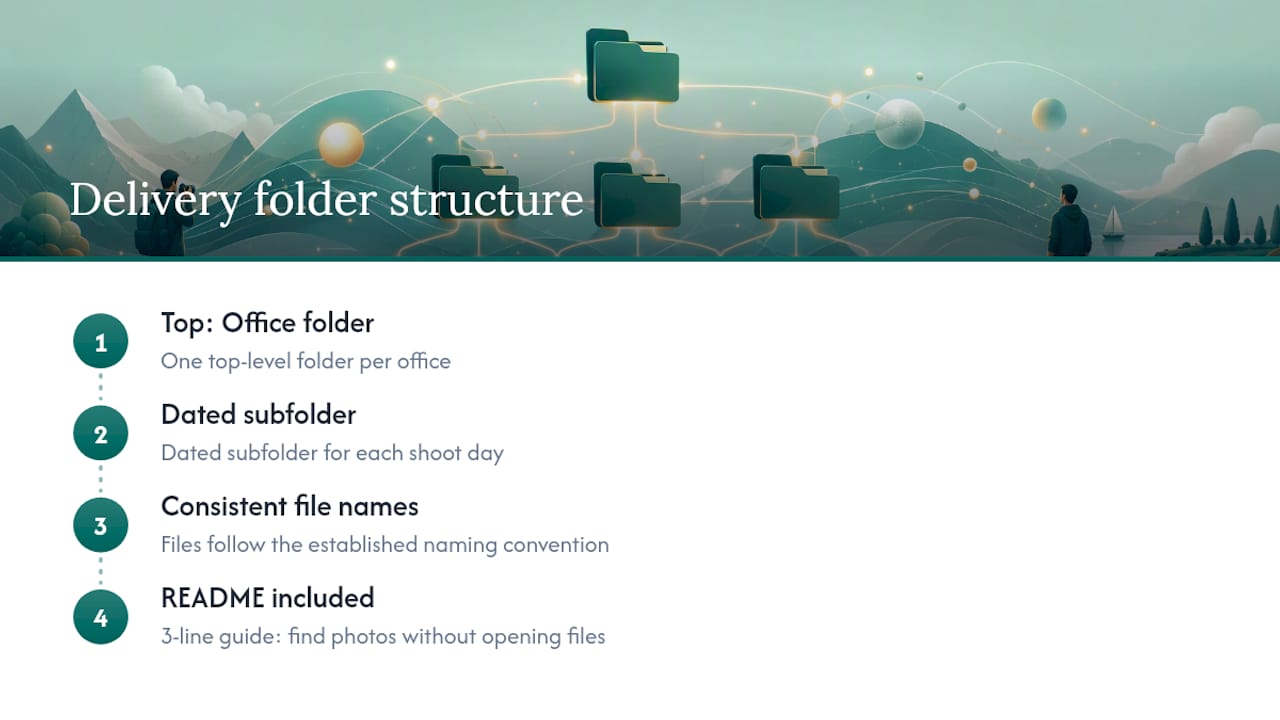
That’s why every delivery includes a short README alongside the folder structure. On a recent multi-office headshot project, the delivered archive looked like this: a top-level folder per office location, a dated subfolder per shoot day, and files following YYYY-MM-DD-clientname-headshot-lastname-###.jpg. The README explained the pattern in three lines and told the client’s HR team exactly how to find any individual’s photo without opening a single file. That kind of clarity matters more during acquisitions and multi-office rollouts, where five different offices might otherwise deliver five different naming habits.
The convention itself isn’t complicated. What makes it valuable is applying it consistently across every project, every office, and every team member touching the files. That consistency is part of what studio2U builds into every shoot package, so a client’s marketing team, HR department, and PR agency all receive files that follow the same logic no matter which office or event the photos came from. If your team is planning a shoot and wants that structure built in from day one, studio2U sets it up as part of the production process, not as an afterthought tacked on after delivery.
A well-named photo file follows the pattern date-first, lowercase-with-hyphens, and padded sequence numbers, and that single formula prevents most of the search and sorting problems photographers encounter.
YYYY-MM-DD, use lowercase letters and hyphens only, and pad sequence numbers with leading zeros.| Point | Details |
|---|---|
| Use the date-first format | Start every filename with YYYY-MM-DD so alphabetical sort matches chronological order. |
| Stick to lowercase and hyphens | Avoid spaces, underscores, and special characters for cross-platform reliability and better searchability. |
| Pad your sequence numbers | Use 001 instead of 1 so file order holds correctly past number nine. |
| Pair names with folder structure | A Year > Month > Project folder system reinforces the same logic your filenames already carry. |
| Keep filenames under 50 characters | Shorter names avoid path-length errors and stay readable in any folder view. |
For everyday personal or studio use, the Philadelphia and Michigan Tech guides cover everything you need. For long-term institutional archives, the Harvard and NASA references go into more depth on preserving context over decades.
Start with the date in YYYY-MM-DD format, followed by a short descriptor like a client or event name, then a padded sequence number, all in lowercase with hyphens separating each part (for example, 2026-05-11-acme-launch-005.jpg).
Use the same date-first logic as your filenames, organized into a Year > Month > Project or Event hierarchy, so the folder path and filenames reinforce each other rather than duplicating the same information.
iPhones name photos automatically using a pattern like IMG_####.HEIC or IMG_####.JPG, which carries no date or subject context and should be renamed on import if you need searchable, long-term organization.
The same core rules apply regardless of format: lowercase letters, hyphens instead of spaces or underscores, a leading date, and padded sequence numbers, all kept under roughly 50 characters for reliability across platforms, per City of Philadelphia’s naming standards.
