One-Day On-site Headshots: Templates & Proofs for Corporate Organizers
%20(1)%201.png)
.png)
.png)
August 4, 2026
%20(1).jpg)

Every corporate client delivery should include three tiers: archival masters (TIFF or high-quality JPEG at full resolution, RAW only when explicitly requested), web-optimized variants in WebP or AVIF with a JPEG fallback, and SVG files for any logo or vector asset. That’s the non-negotiable baseline. Per asset, you’re looking at one master, one web-optimized export, and one presentation or print variant. Here’s what those specs look like in practice:
Master/archival: Full sensor resolution, TIFF or Photoshop-quality JPEG (quality 10–12), sRGB or client-specified ICC profile embedded
Web-optimized: Resized to container width (hero at 1920px, content at 1200–1600px, thumbnails at 300–800px), exported as WebP (quality 80) with a JPEG fallback; target file sizes: hero under 200 KB, content under 100 KB, thumbnails under 30 KB
Presentation/print variant: 1920px wide PNG or high-quality JPEG for slides; TIFF or CMYK-converted file for offset print
Vector assets: SVG, ideally under 5 KB for simple logos
Deliver these in a named folder structure with a ReadMe manifest. That’s the whole prescription.
Not every format belongs in every context. The table below maps each format to its strongest corporate use case, with the tradeoffs that actually matter for client handoffs.
| Format | Best for | Pros | Key notes |
|---|---|---|---|
| AVIF | Web photos, hero images | Smallest file size; HDR and transparency support | Requires JPEG fallback; encoder speed slower |
| WebP | Web photos and graphics | Smaller than JPEG at equal quality; broad browser support | Safe default for all web use in 2026 |
| JPEG | Universal fallback, email, print proofs | Maximum compatibility across all platforms | Lossy; no transparency; avoid re-saving repeatedly |
| PNG | Screenshots, UI graphics, transparency | Lossless; pixel-perfect edges | Large files; not ideal for photographs |
| SVG | Logos, icons, illustrations | Scales without quality loss; typically under 5 KB (usually under 10 KB for more complex illustrations) | Requires vector source; not for photos |
| TIFF | Archival masters, print production | Lossless; supports layers and ICC profiles | Very large files; not for web delivery |
| RAW | Archival only, when client requests | Maximum editing latitude | Requires specific software; interpretation varies |
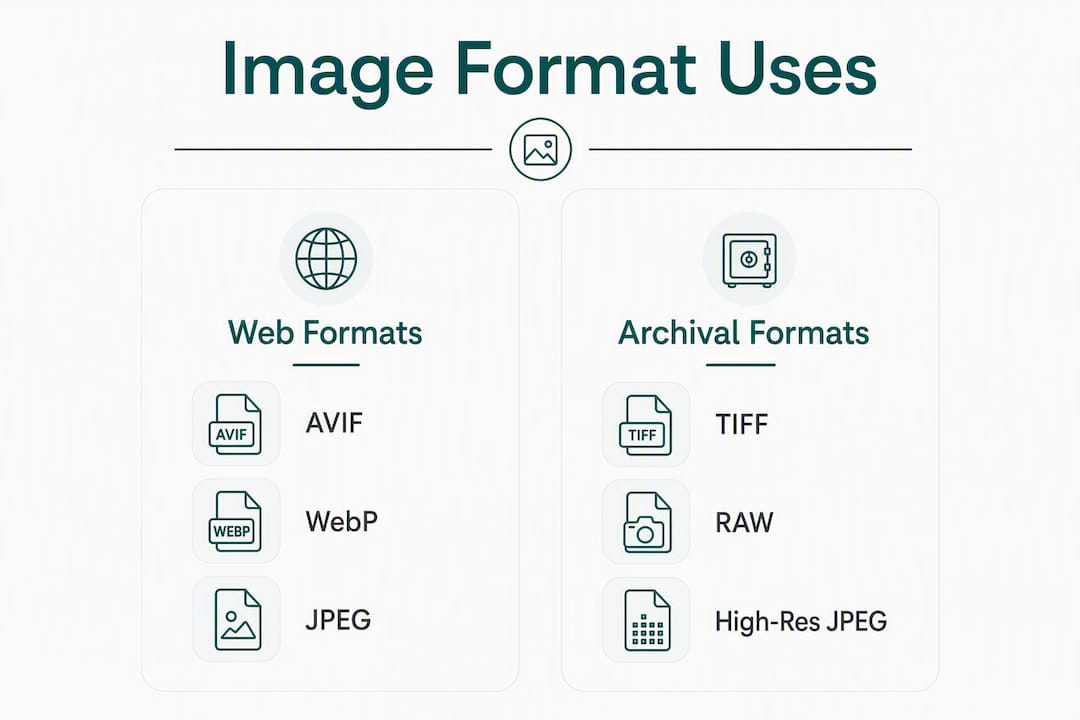
A few compatibility points worth knowing. AVIF is the most efficient modern format but still needs a JPEG fallback for older email clients, Microsoft Teams previews, and any platform that hasn’t updated its rendering engine. WebP is the safer default for 2026 web delivery. PNG earns its place for UI screenshots and any graphic where a hard edge or transparent background matters, but it’s the wrong choice for photographs. For logos, SVG is the only format that survives a 4K monitor and a business card without degrading.
The MDN image format guide is the most thorough technical reference for browser compatibility per format, and it’s updated as support changes.

Resizing to the actual display container is the single most impactful step in the entire delivery workflow. Compression helps, but sending a 4000px wide image to a slot that renders at 1200px wastes bandwidth and slows load times regardless of how aggressively you compress it.
Here are the targets that cover the placements corporate teams use most:
Pro Tip: For Retina displays, export a 2x version (3840px for a hero) and reference it via srcset in HTML. Do not send the 2x file to every device. Serving a 3840px image to a standard 1080p monitor doubles the download with zero visual benefit. The srcset attribute lets the browser pull the right size automatically, which typically reduces mobile image payloads by 70–85% compared with serving full desktop images universally.
The order matters: resize first, then compress. Resizing a 4000×3000 camera file to 1200px width typically reduces file size by 50–100x when combined with compression. Compression alone on an oversized file saves far less and still delivers a bloated asset.
AVIF typically achieves around 20% smaller file sizes than WebP and up to 50% smaller than JPEG at comparable visual quality. For a corporate team delivering dozens of hero images across a website, that difference compounds fast.
Recommended export presets by format:
Verification before delivery takes three minutes and prevents a lot of client emails. Open the exported file at 100% zoom and check for compression artifacts around high-contrast edges (text on photos, hair against backgrounds). Confirm the embedded color profile in the file’s metadata. Check the file size against the targets above. If a hero image is coming in at 400 KB after export, resize the source before re-exporting rather than dropping quality further.
For web delivery, embed sRGB. Full stop. Every monitor, phone, and browser renders sRGB predictably. Deliver a file with an Adobe RGB or ProPhoto RGB profile and no conversion, and colors will look washed out or oversaturated on most screens.
For print, the situation is more nuanced. Offset printing typically requires CMYK, but the conversion from RGB to CMYK should happen at the print vendor’s end unless you have a specific profile they’ve provided. Deliver RGB TIFF masters with the ICC profile embedded and let the printer handle the conversion. When a client’s print vendor does specify a profile (such as SWOP or GRACoL for US commercial printing), embed that profile in the file you send.
Metadata best practices for corporate deliveries:
Accessibility note: Descriptive filenames and alt text are not optional for corporate publishing. A file named
IMG_4872.jpgtells a screen reader and a search engine nothing. Use a convention likeacme-corp-ceo-portrait-2024.jpg. When handing off to a web or marketing team, include a separate column in your manifest with suggested alt text for each image. This step protects the client’s ADA compliance and improves image search visibility.
Common mistakes that cause color shifts or lost metadata:
Clean folder structure is the difference between a client who deploys assets the same day and one who emails you three times asking which file to use. The UPDIG guidelines recommend organizing deliveries so that file characteristics, color profiles, and usage rights are immediately clear. Here’s a folder structure that works for most corporate deliveries:

| Folder | Contents | Notes |
|---|---|---|
/Masters |
Full-resolution TIFF or high-quality JPEG | Archival; not for direct web use |
/Web |
WebP + JPEG fallback, resized to container dimensions | Ready to upload; organized by placement |
/Print |
TIFF with ICC profile, or CMYK-converted files | Labeled with color space |
/SVGs |
Logo and icon files | Include both full-color and single-color variants |
/Docs |
ReadMe manifest, usage rights, color profile notes | One-page reference for the client’s team |
File-naming convention: [client-code]_[descriptor]_[YYYYMMDD]_[asset-id].[ext]
Example: acme_ceo-portrait_20240315_001.jpg
Versioning follows the same pattern with a _v2 suffix before the extension when a revised file replaces an earlier one.
Delivery method comparison:
For any delivery containing unpublished executive photography or pre-announcement brand assets, set link-level passwords and expiration dates. Rights management starts at delivery, not publication.
Sample ReadMe manifest template:
Project: [Client Name] Brand Photography
Delivered by: [Agency/Photographer]
Delivery date: [YYYY-MM-DD]

/Masters — Full-resolution archival files. Color profile: sRGB. Not for web upload.
/Web — Resized and compressed for web use. WebP primary, JPEG fallback included.
/Print — TIFF files with embedded ICC profile [profile name]. Contact vendor before CMYK conversion.
/SVGs — Vector logos. Scalable to any size. Use these for all digital and print logo placements.

Usage rights: [License terms or reference to contract]
Creator: [Name, email]
Questions: [Contact email]
studio2U’s delivery process runs in six defined steps from capture to handoff, and each step has a clear output. Marketing teams can adapt this sequence for any corporate photography engagement.
/Masters, /Web, /Print, /SVGs, and /Docs folder structure. The ReadMe manifest is generated and placed in /Docs.Workflow checklist for marketing teams reviewing a delivery:
Sample delivery email subject line: [Client Name] Brand Photography Delivery — [Date] — [Project Code]
The body should include: a brief description of what’s included, the folder structure, the link and password (if applicable), the link expiration date, and a single point of contact for revision requests. Keep it to five lines. Clients don’t read long delivery emails; they click the link.
The most effective corporate image delivery combines archival masters with optimized web variants and a clear manifest, so clients can deploy assets immediately without back-and-forth.
| Point | Details |
|---|---|
| Deliver three tiers per asset | Master (TIFF/JPEG), web-optimized (WebP + JPEG fallback), and presentation variant (1920×1080px PNG). |
| Resize before you compress | Resizing to container dimensions reduces file size far more than compression alone; hero images target under 200 KB. |
| WebP is the safe web default | WebP delivers smaller files than JPEG at equal quality and has broad browser support; add AVIF where supported. |
| Embed sRGB and metadata | Always embed sRGB for web files, include IPTC/XMP creator and rights data, and use descriptive filenames for accessibility. |
| studio2U delivers all three tiers | studio2U packages archival masters, optimized web variants, and a branded manifest with a five-day turnaround. |
Most photographers and marketing teams treat the handoff as the last five minutes of a project. It’s actually the moment the client forms their lasting impression of your rigor.
Think about what happens downstream. A CMO opens a delivery folder and finds files named DSC_0047_final_FINAL_v3.jpg with no folder structure and no ReadMe. She forwards it to the web developer, who uploads the 8 MB original to the homepage. The page slows down. The investor deck gets built with the wrong file. Six months later, someone asks for the logo in SVG and nobody can find it.
Now run the same scenario with a clean delivery: named folders, a manifest, web-ready files at the right dimensions, and a branded transfer page that signals the work was done with intention. The developer uploads the correct WebP. The designer grabs the SVG. The CMO doesn’t send a single follow-up email. The assets get used correctly, immediately, and repeatedly.
That’s the real argument for treating delivery as part of the service. Corporate branding images live in investor decks, recruiting pages, press kits, and LinkedIn profiles for years. A well-organized delivery protects that longevity. A sloppy one erodes it, quietly, every time someone grabs the wrong file.
The format choices and folder structures in this guide aren’t bureaucratic overhead. They’re what separates a photography engagement that generates value for three years from one that generates a support ticket in week two.
studio2U is the turnkey option for corporate teams that want premium photography without the coordination overhead. The team arrives at your office with portable studio systems, shoots on-site with minimal disruption, and delivers a fully packaged asset set within five business days.
Every studio2U delivery includes archival masters, web-optimized WebP and JPEG variants sized to your actual container dimensions, presentation-ready PNGs, SVG logo files where applicable, and a ReadMe manifest your web team can act on immediately. The branded transfer page means the handoff looks as polished as the photography itself.
studio2U serves startups, private equity firms, financial services organizations, and enterprise teams across the United States. If your team needs new headshots, executive portraits, or a full brand photography refresh, book a consultation to discuss your project scope and turnaround requirements.
The recommendations in this guide draw from the following sources. Each is linked to the original for verification.
